Install Requirements
On Mac, Linux, or Mobile? Try the browser editor at https://www.terraria-map-editor.com.
Installation
TEdit 5 uses Velopack for installation and automatic updates.
- Download
TEdit-Setup.exefrom the latest release - Run the installer — TEdit is installed to your local app data folder automatically
- Launch TEdit from the Start Menu or desktop shortcut
That's it. Future updates are downloaded and applied automatically (see Auto-Update).
Windows SmartScreen
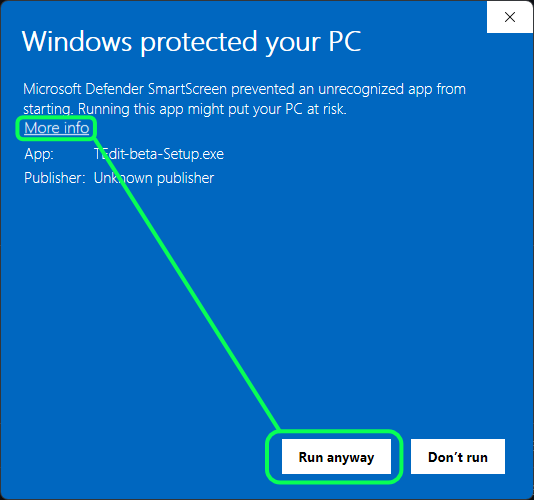
If Windows Defender SmartScreen appears, click More info then Run anyway to proceed with the installation. TEdit is open-source but not yet code-signed, so Windows may flag the installer as unrecognized.
Repair Install
If TEdit is already installed, the installer will offer a Repair option. This erases the current installation and re-installs the latest version to %LocalAppData%\TEdit.
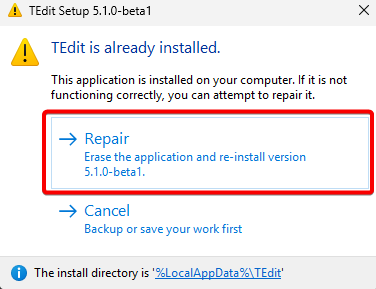
%AppData% installIf you previously installed TEdit to %AppData%\TEdit (the legacy location), choose Repair to switch to the modern %LocalAppData%\TEdit install path. After confirming the new install works, you can safely delete the old %AppData%\TEdit folder.
If you previously used the manual zip install, you can switch to the Velopack installer. The old folder can be deleted after confirming the new install works.
Manual / Portable Install
If you prefer not to use the installer:
- Download the
TEdit-x.x.x-win-x64.zipfrom the latest release - Unzip to an empty folder with write access, such as
C:\Games\TEdit - Launch
TEdit.exe
The portable zip version does not support automatic updates. You'll need to download new releases manually.
Requirements
- Windows 10/11 x64 (earlier versions are not supported)
- .NET 10 Desktop Runtime — included with the Velopack installer. For portable installs, download here.
- DirectX 11 compatible GPU with up-to-date drivers
Sprite Viewing
For sprite/texture rendering, Terraria must be installed or its content files must be accessible:
- Steam:
Program Files (x86)\Steam\steamapps\common\Terraria\Content - GOG: Check your GOG install directory
If Terraria isn't installed locally, TEdit still works — you just won't see sprite previews. You can point to a custom content path in Settings.
Known Limitations
- Not compatible with modded world files (tModLoader, TConfig)
- Sprite textures require a Steam or GOG copy of Terraria
- Some older integrated graphics may have rendering issues