Paint Mode
The paint mode dropdown controls what the Pencil, Brush, and Fill tools affect. Switch modes to paint different layer types.
Tile/Wall Mode

The default mode. Select a tile type and/or wall type from the dropdowns. The ID number is shown next to each selection.
Eraser toggle — When enabled (highlighted), painting removes tiles/walls instead of placing them.
Tile Palette
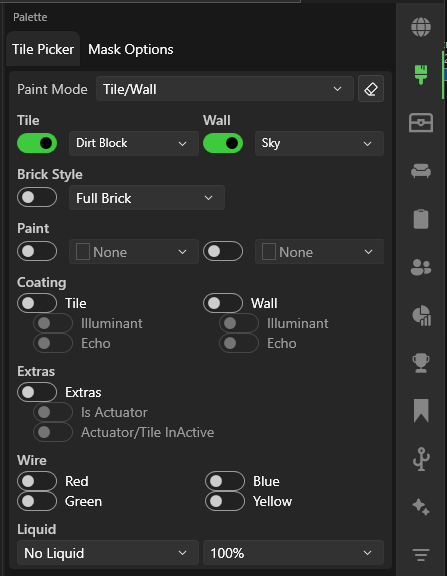
The tile and wall selectors in the action bar let you pick the active tile and wall types. The Palette sidebar panel provides a larger browsable view of all tiles and walls with search and filtering.
Masks
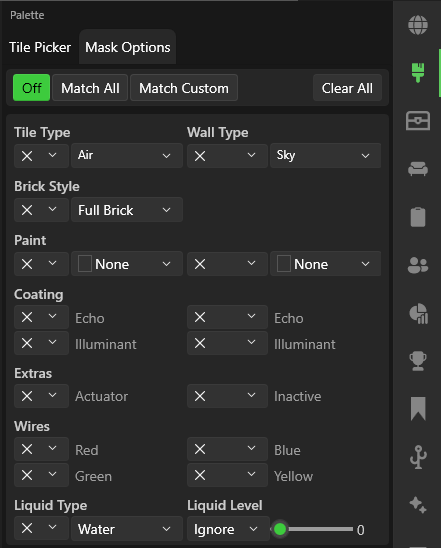
Masks control where painting takes effect:
| Mask Mode | Effect |
|---|---|
| Disable Mask | Paint anywhere |
| Edit Empty | Only paint over empty space |
| Edit Matching | Only paint over tiles/walls matching the mask type |
Set the mask type in the Mask dropdown — it has the same tile/wall options as the main selector. Tile masks and wall masks can be configured independently in the Palette sidebar panel.
Coatings
You can also apply paint colors and coatings (Echo, Illuminant, Full Bright) to tiles and walls.
Negative Paint
Terraria's Negative Paint (paint ID 30) inverts the colors of tiles and walls. TEdit renders this with a dedicated GPU shader that inverts RGB values while preserving transparency — so negative-painted tiles appear correctly in the editor, matching in-game appearance.
Wire Mode

Place or remove wires. Select which wire color(s) to paint: Red, Blue, Green, Yellow. You can also place actuators in this mode.
Press Shift+W to enable wire routing for CAD-style click-to-click wire drawing with automatic 90° and 45° path routing. Use number keys 1–4 to quickly toggle wire colors.
Liquid Mode

Place or remove liquids: Water, Lava, Honey, Shimmer.
Platform Mode
Place platforms with optional stair routing. Platform mode supports wire routing (Shift+W) for CAD-style routed placement.
| Action | Result |
|---|---|
| Paint normally | Place individual platforms |
Shift+W | Enable wire routing for click-to-click platform placement |
With 45° miter routing, platforms are placed with proper stair frames — treads (insets), risers (stringers), and landings at transitions between flat runs and staircase sections. The stair direction and frame variants are applied automatically. Platform style is selected from the action bar.
See Wire Routing — Platform Routing for details on stair frame assignment.
Track Mode

Place minecart tracks and related components:
| Track Type | Description |
|---|---|
| Track | Standard minecart rail |
| Booster | Speed booster track |
| Pressure Plate | Track-mounted pressure plate |
| Hammer | Cycles track junctions |
Track Sub-modes
Two additional sub-modes automate common track patterns:
| Sub-mode | Description |
|---|---|
| Tunnel | Automatically carves out a tunnel while placing track — removes tiles above and below to create a clear path for the minecart |
| Smooth | Places track with gentle curves and transitions instead of hard corners, producing smoother-looking rail lines |
Select the sub-mode from the track options in the action bar while Track Mode is active.
Track mode also supports wire routing (Shift+W) for CAD-style routed track placement. The 45° miter routing uses thin diagonal paths (one tile per diagonal step) matching Terraria's native track diagonal behavior. When Tunnel sub-mode is active, the tunnel clearing area is previewed in a darker overlay above the track path.
Sprite Mode

Used with the Sprite tool for placing sprites. Select sprites from the Sprites sidebar panel.
Painting Existing Sprites
The Pencil and Brush tools can apply properties to existing sprites without erasing them. With the eraser toggle off in Sprite mode, painting over an existing sprite applies:
- Tile paint color — Color the sprite's tile
- Wall paint color — Color the wall behind the sprite
- Coatings — Echo and Illuminant coatings for tiles and walls
- Actuator — Toggle the actuator flag
- Inactive — Toggle the actuated (inactive) state
This lets you quickly paint or coat large numbers of placed sprites using the brush, without having to re-place them.