Palette
The Palette panel provides a browsable view of all available tiles and walls, along with mask configuration for controlling where paint operations take effect.
Tile Picker
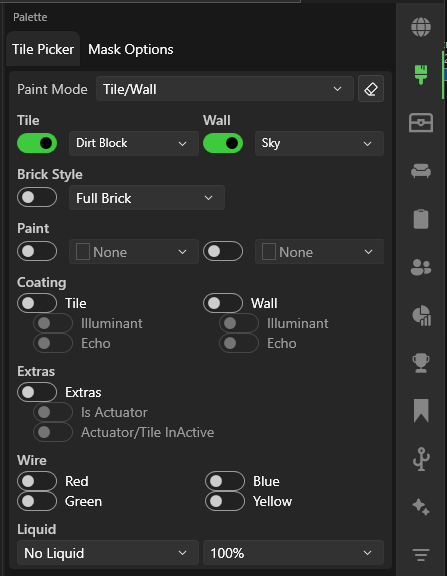
Browse and select tiles and walls from categorized lists. The selected tile and wall are used by the Pencil, Brush, and Fill tools in Tile/Wall paint mode.
- Search — Filter tiles or walls by name
- Tile selector — Click to set the active tile type
- Wall selector — Click to set the active wall type
The selected tile/wall ID is also shown in the action bar dropdowns. Changes in the Palette panel are reflected in the action bar and vice versa.
Masks
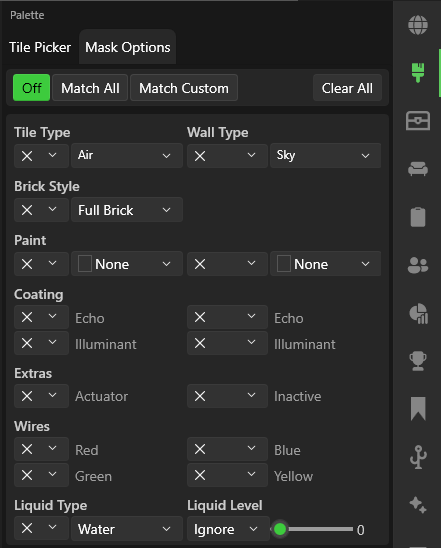
Masks restrict where painting operations take effect. The Palette panel provides dedicated mask controls for both tiles and walls.
Tile Mask
| Mode | Effect |
|---|---|
| Disable Mask | Paint tiles anywhere |
| Edit Empty | Only place tiles in empty space |
| Edit Matching | Only replace tiles matching the mask type |
Set the tile mask type from the dropdown — it lists all available tile types.
Wall Mask
| Mode | Effect |
|---|---|
| Disable Mask | Paint walls anywhere |
| Edit Empty | Only place walls in empty space |
| Edit Matching | Only replace walls matching the mask type |
Set the wall mask type from the dropdown — it lists all available wall types.
Use the Picker tool and right-click a tile on the map to quickly set it as the mask type.
Replace All
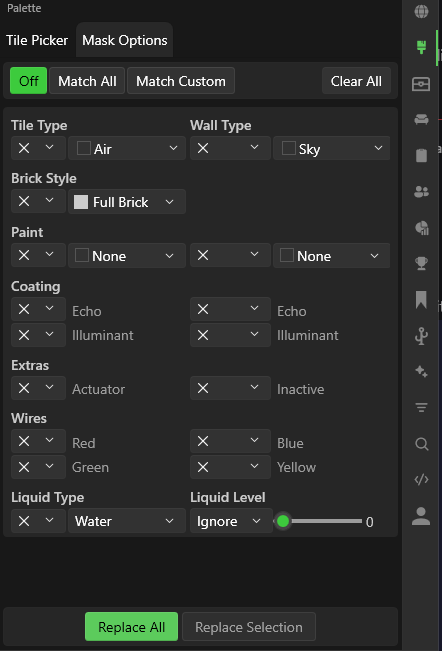
At the bottom of the Mask Options tab, two bulk-replace buttons let you apply the selected tile to matching areas across the map or selection:

| Button | Effect |
|---|---|
| Replace All | Replace every tile/wall on the entire map that matches the current mask with the selected tile/wall |
| Replace Selection | Replace only within the current selection area |
These buttons use the active mask configuration to determine which tiles or walls to match. Set the mask mode to Edit Matching and choose a mask type, then click one of the replace buttons to perform the swap.
Replace All modifies the entire map and can be a large operation. Use Replace Selection to limit changes to a specific area.