Toolbar
The toolbar is on the left side of the editor. Select a tool, then interact with the map canvas.

Arrow Tool [A]
The default cursor tool. Use it to inspect tiles without making changes.
| Action | Result |
|---|---|
| Hover | Shows tile info in the status bar |
| Right-click | Opens chest, sign, or tile entity editor |
Selection Tool [S]
Draw a rectangle selection on the map.
| Action | Result |
|---|---|
| Left-click + drag | Select area |
| Shift + left-click + drag | Expand selection |
Right-click or Ctrl+D | Clear selection |
| Ctrl + right-click | Restore cleared selection |
Ctrl+C | Copy selection to clipboard |
While a selection is active, painting is restricted to inside the selection.
Export Selection as PNG
When a selection is active, you can export it as a PNG image via Edit → Export Selection or the selection toolbar that appears above the canvas. Four export scales are available:
| Scale | Pixels per tile | Description |
|---|---|---|
| Pixel Map (1×) | 1×1 | Quick overview using minimap tile colors (CPU-only) |
| Quarter Texture (4×) | 4×4 | Compact rendered preview |
| Half Texture (8×) | 8×8 | Balanced quality and file size |
| Full Texture (16×) | 16×16 | Full game-resolution render with walls, tiles, liquids, and wires |
The textured modes (4×, 8×, 16×) render with the same visual fidelity as the editor canvas, including negative paint effects and tile textures. Large exports are rendered in strips to stay within GPU memory limits.
Picker Tool [R]
Also known as the eyedropper. Picks tile/wall/liquid properties from the map.
| Action | Result |
|---|---|
| Left-click | Pick tile, wall, and liquid |
| Right-click | Pick as mask |
Hold-to-pick: Hold R to temporarily switch to the Picker, pick a tile, then release R to return to your previous tool. A quick tap of R switches to Picker permanently.
Pencil Tool [E]
Places one tile at a time. Great for fine detail work.
| Action | Result |
|---|---|
| Left-click + drag | Freehand draw |
| Shift + left-click | Draw straight line segment to clicked point |
| Right-click + drag | Horizontal line |
| Left + right-click + drag | Vertical line |
| Alt + left-click | Wire trace highlight (in Wire mode) |
In Wire paint mode, press Shift+W to enable single wire routing — click-to-click CAD-style wire drawing with 90° and 45° routing.
Polyline Drawing (Shift+Click)
Hold Shift and click successive points to draw connected straight line segments — a polyline. Each Shift+click anchors the end of the previous segment and starts the next. This works with the Pencil, Brush, and Morph tools. Release Shift to end the polyline.
Brush Tool [B]
Paints with a configurable brush size and shape. See Brush Settings.
Same drawing controls as the Pencil tool, but affects an area based on brush size. Supports the same Shift+click polyline drawing. Also supports Alt+click wire trace highlight.
In Wire paint mode, press Shift+W to enable bus wire routing — draws multiple parallel wires filling the brush area with proper spacing.
Fill Tool [F]
Flood fills connected tiles of the same type.
| Action | Result |
|---|---|
| Left-click | Fill connected matching tiles |
| Left-click in selection | Fill limited to selection area |
Point Tool [P]
Places spawn points and NPC home locations.

Select a point type from the dropdown (Spawn, Dungeon, NPC homes, Team spawns), then left-click on the map to place it.
Sprite Tool [T]
Places furniture, decorations, and other multi-tile sprites.
| Action | Result |
|---|---|
| Left-click | Place sprite |
| Left-click + drag | Draw 1x1 sprites in a line |
Use the Sprites sidebar to pick the sprite type and style.
Morph Tool
Converts tiles and walls to a selected biome type.

Only affects existing tiles — doesn't fill empty space. Behavior changes with depth (sky, dirt, rock, hell layers). Supports Shift+click polyline drawing.
Options:
- Target Biome — Purify, Corruption, Crimson, Hallow, Glowing Mushroom, Jungle, Forest, Snow, or Desert
- Base Tiles / Evil Tiles / Moss / Sprites — Toggle what gets converted
Multi-tile sprites like grass, vines, torches, altars, and orbs are replaced with biome-appropriate variants when Sprites is enabled. Conversions round-trip cleanly — you can convert between biomes without losing structural detail.
Paste Tool
Activated by Ctrl+V or clicking Paste on a clipboard schematic.
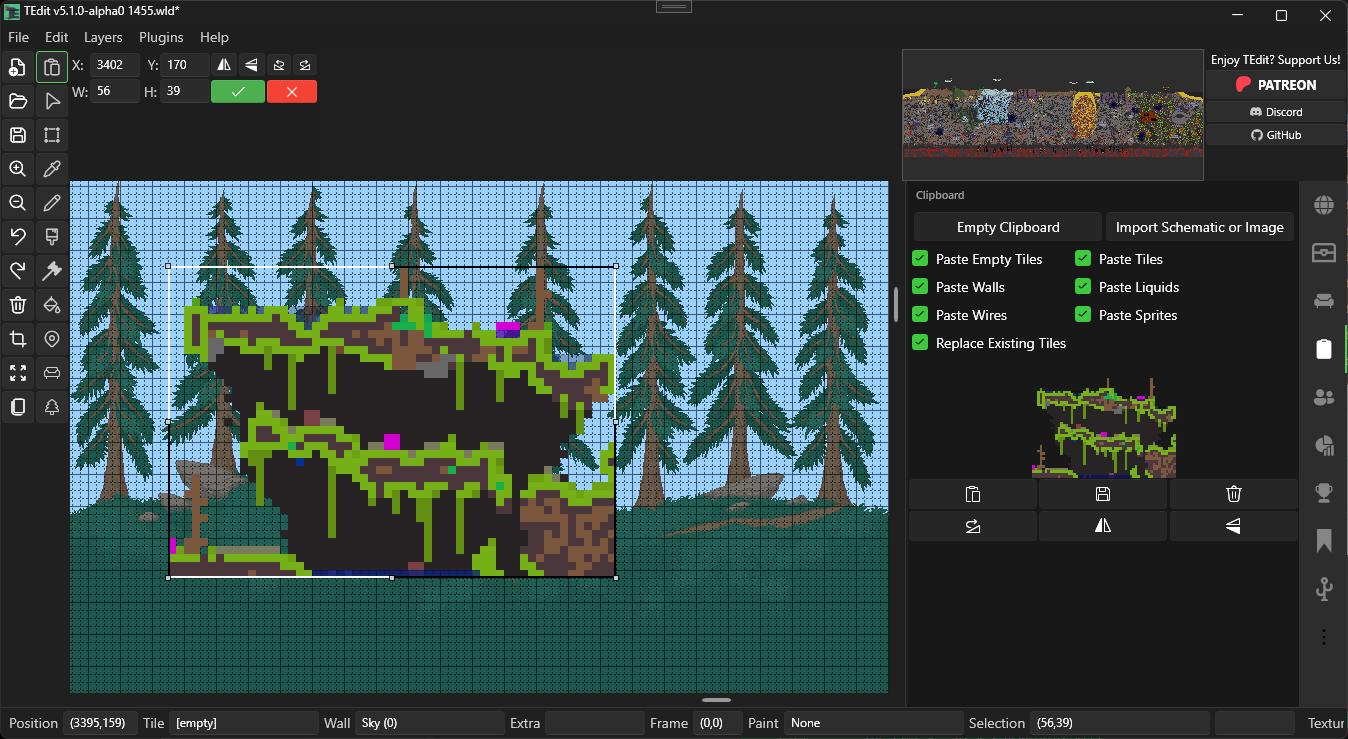
| Action | Result |
|---|---|
| Left-click | Place floating paste on the map |
| Drag inside paste | Reposition |
| Drag a handle | Resize (nearest-neighbor resampling) |
Ctrl+Q / Ctrl+Shift+Q | Rotate CW / CCW |
Ctrl+H / Ctrl+Shift+H | Flip horizontal / vertical |
Enter | Accept (commit to world) |
Esc | Cancel |
The paste toolbar shows editable X, Y, W, and H fields. See Clipboard — Floating Paste for full details.
Wire Trace Highlight
Alt + left-click on a tile with wires to highlight the entire connected wire circuit. TEdit traces from the clicked tile using a direction-aware BFS (breadth-first search) that respects junction box routing — so wires on different sides of a junction are traced independently.
The traced wire is highlighted with a colored overlay matching the wire color (red, blue, green, or yellow). If you have a wire color selected in the Wire Mode picker, TEdit traces that color; otherwise it traces the first wire found on the clicked tile.
The highlight clears when you switch tools or Alt+click on an empty tile.
Wire trace works with the Arrow, Pencil, and Brush tools.
Hammer Tool
Area-based hammer tool. Applies hammer actions across the brush area. Uses the same brush size/shape as the Brush tool.