Clipboard
The clipboard stores copied map sections as schematics. Use it to duplicate builds, import community creations, or save your work as reusable templates.
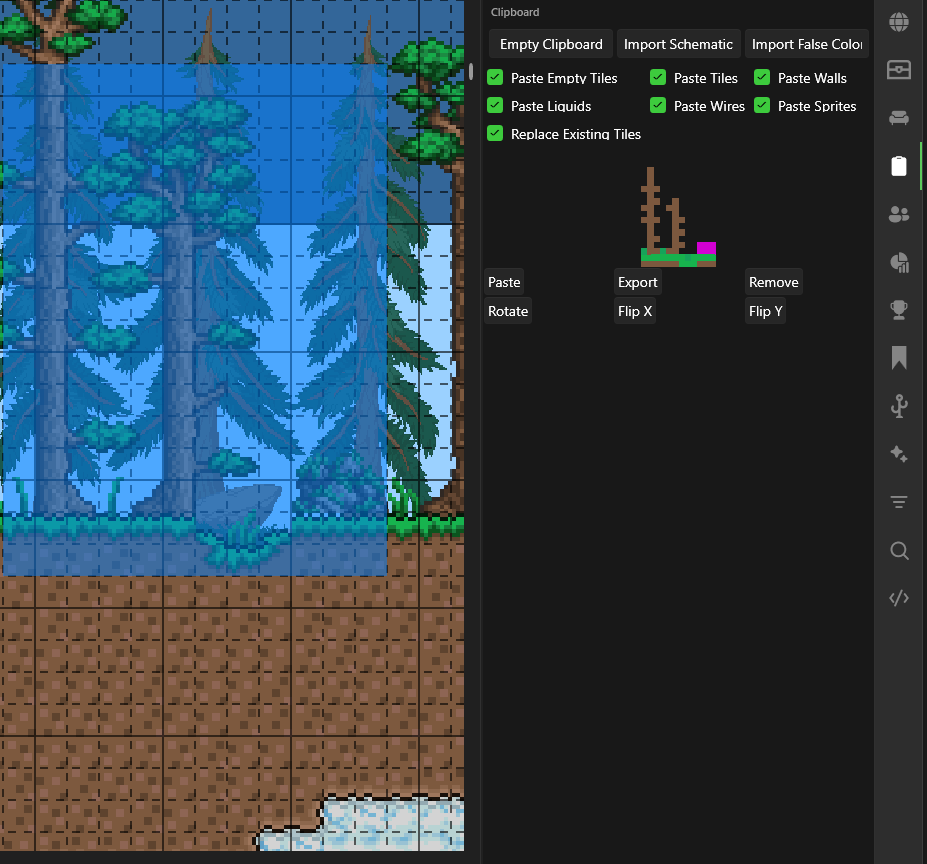
Quick Reference
| Action | Shortcut |
|---|---|
| Copy selection | Ctrl+C |
| Paste last copied | Ctrl+V |
| Place while pasting | Right-click on map |
Copying
- Use the Selection tool to select an area
- Press
Ctrl+C— the selection appears in the clipboard
Pasting
- Click Paste on a schematic, or press
Ctrl+V - Left-click on the map to place a floating paste layer
- Position, resize, and transform as needed (see Floating Paste)
- Press Enter or click the checkmark to commit, or Esc to cancel
Ctrl+V pastes the most recent schematic. Click Paste on a specific schematic to switch which one Ctrl+V uses.
Instant Paste

When Instant Paste is enabled (toggle in the paste toolbar), pasting commits immediately on click without creating a floating preview. This is useful for rapid stamping of schematics — click repeatedly to place copies without needing to accept each one.
Instant paste skips the floating layer entirely: each click places the schematic directly into the world at the cursor position.
Floating Paste
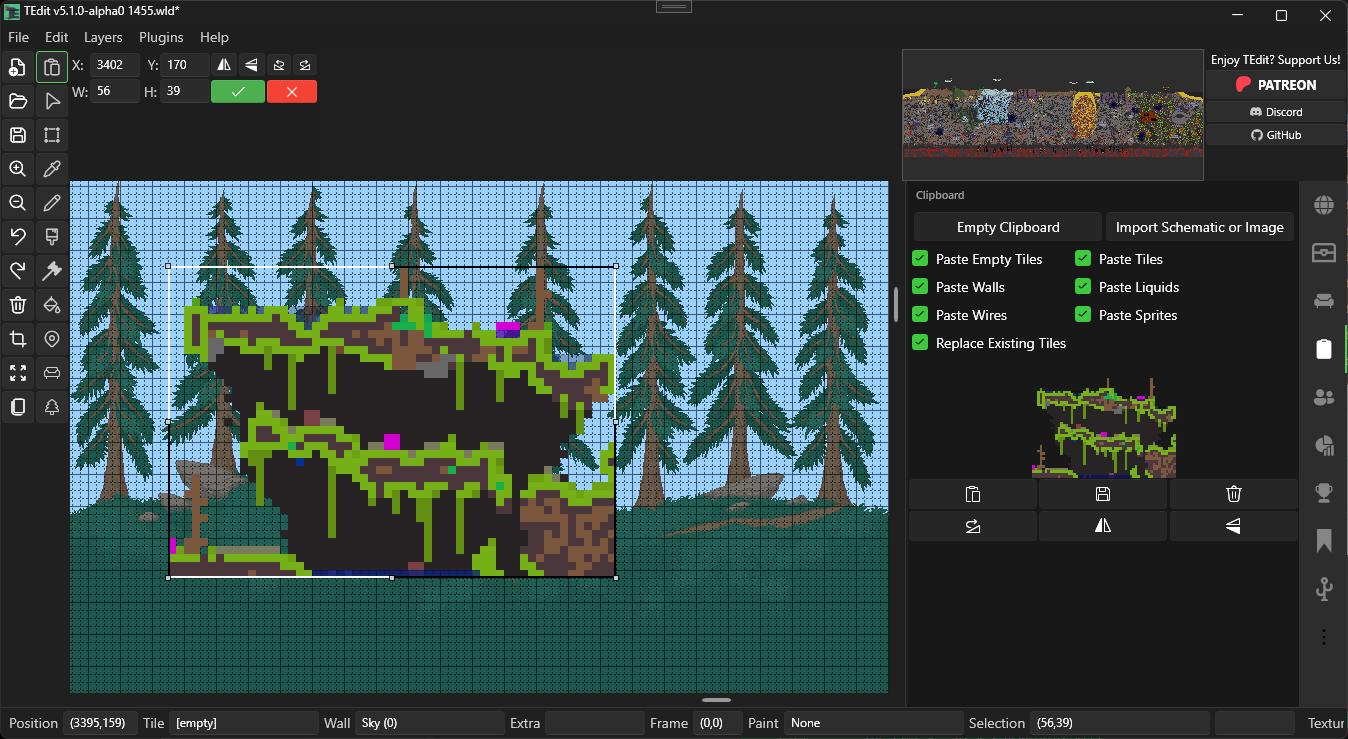
When you click to place a paste (with Instant Paste disabled), a floating preview appears with a dashed border and drag handles. The paste is not committed until you accept it — you can reposition, resize, and transform it first.
Moving
Left-click and drag anywhere inside the paste to reposition it. The cursor changes to a move icon when hovering over the paste area. You can also type exact X/Y coordinates in the paste toolbar.
Resizing
Drag any of the 8 handles around the border to resize:
| Handle | Effect |
|---|---|
| Corner handles | Resize both width and height |
| Top / Bottom edge | Resize height only |
| Left / Right edge | Resize width only |
The cursor changes to a directional resize arrow when hovering over a handle. You can also type exact W/H values in the paste toolbar.
Resizing uses nearest-neighbor tile resampling — tiles are duplicated or removed to fill the new size. Sprites (furniture, decorations) are stripped during resize. Slopes and half blocks are preserved on original tiles but duplicated tiles become full blocks.
Transforming
| Shortcut | Action |
|---|---|
Ctrl+Q | Rotate clockwise 90° |
Ctrl+Shift+Q | Rotate counter-clockwise 90° |
Ctrl+H | Flip horizontal |
Ctrl+Shift+H | Flip vertical |
Accepting / Cancelling
| Action | Result |
|---|---|
| Enter or checkmark button | Commit the paste to the world |
| Esc or X button | Cancel and discard the paste |
Import / Export
- Import Schematic — Load
.TEditSchfiles from disk - Export — Save a schematic as a
.TEditSchfile to share or reuse later - Remove — Delete a single schematic from the clipboard
- Empty Clipboard — Clear all loaded schematics