Filter
The Filter panel lets you hide or dim specific tile types so you can focus on what you're editing.
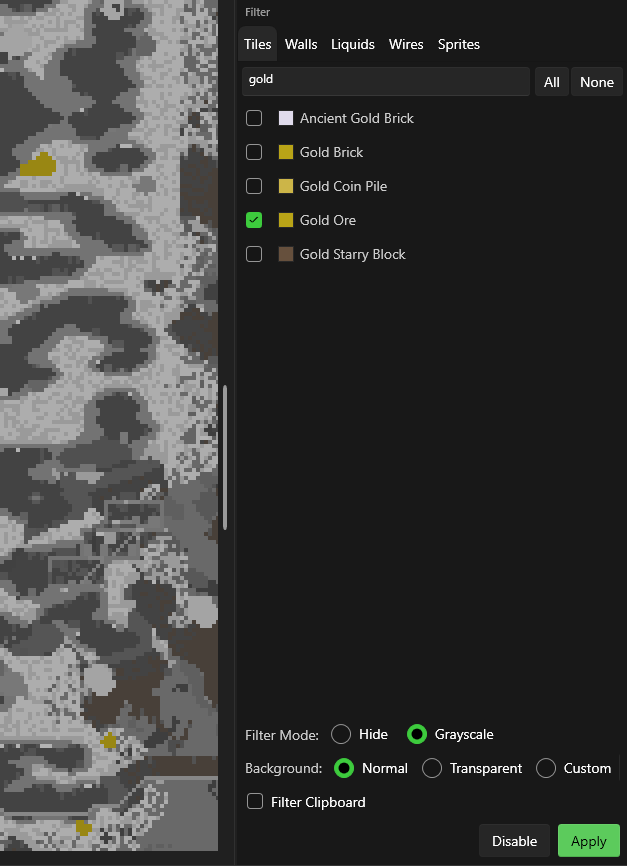
Filter Modes
| Mode | Effect |
|---|---|
| Hide | Filtered types become completely invisible |
| Darken | Filtered types are darkened and desaturated, making unfiltered tiles stand out |
Toggle between modes with the Hide switch at the top of the panel. When Hide is off, the Darken mode is active.
Darken & Desaturate Sliders
In Darken mode, two sliders control the visual intensity applied to filtered tiles:
- Darken (0–100, default 75) — How much to dim filtered tiles. Higher values make them darker.
- Desaturate (0–100, default 75) — How much to remove color from filtered tiles. Higher values make them more gray.
These sliders use a GPU shader for real-time preview as you adjust them.
Background Modes
Control the map background appearance while filtering:
| Mode | Effect |
|---|---|
| Normal | Standard background |
| Transparent | See-through background |
| Custom | Pick a custom background color using the color picker |
Filter Tabs
Select which layer types to filter:
- Tiles — Filter specific tile types
- Walls — Filter wall types
- Liquids — Filter water, lava, honey, shimmer
- Wires — Filter wire colors
- Sprites — Filter furniture and decorations
Usage
- Toggle the Hide switch to choose Hide or Darken mode
- If using Darken mode, adjust the Darken and Desaturate sliders
- Select a Background Mode
- Check the items you want to filter in the tabs
- Click Apply
- Click Disable to restore normal view
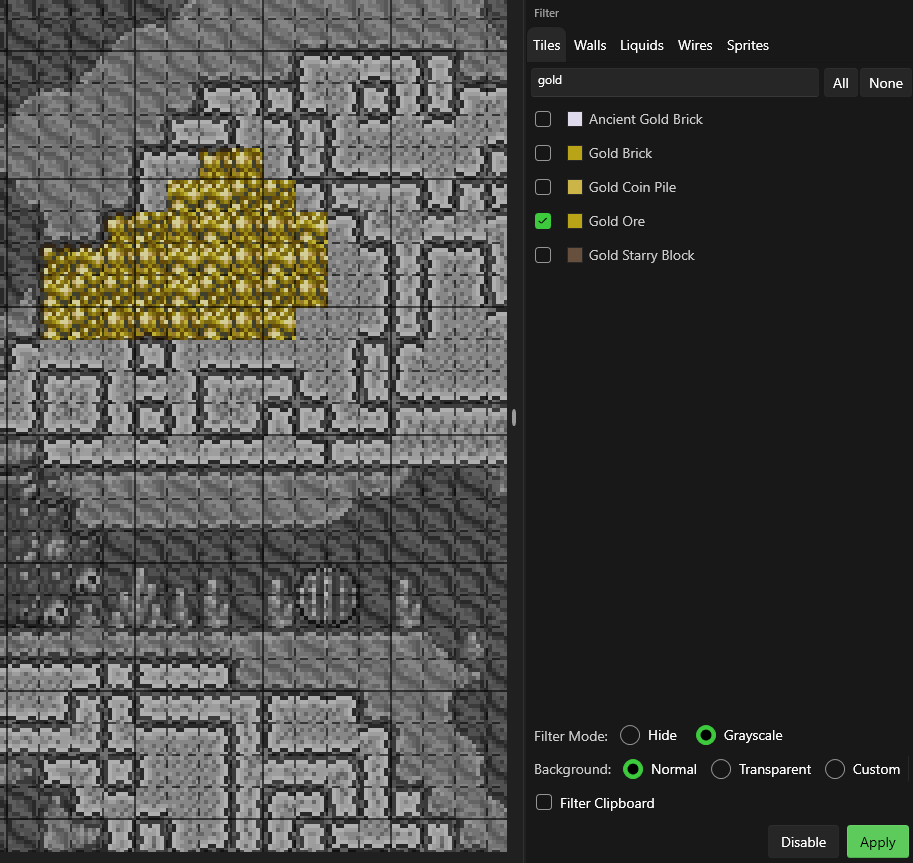
Filter Clipboard — When enabled, clipboard paste previews also respect the active filters.
Pixelmap
The Pixelmap feature renders the entire world as a color-coded image for analysis. It supports three color modes:
| Color Mode | Description |
|---|---|
| Normal | Renders tiles using their standard map colors — the same colors you see on the in-game minimap |
| Biome | Colors each tile based on the biome it belongs to (Corruption, Crimson, Hallow, Jungle, Snow, Desert, etc.) — useful for visualizing biome spread and distribution |
| Height | Colors tiles based on their vertical position — a gradient from surface to underground to cavern, making depth and terrain shape easy to read |
Select the mode from the Pixelmap section in the Filter panel, then click Render to generate the view. The pixelmap is a snapshot — re-render after making edits to update it.